
Recent graduates often struggle to find entry-level jobs. Most job platforms are built around experienced professionals, so graduates have to dig through listings that don't fit them.
UX Case Study · Mobile App
MyJob Application
A job-search app with an Entry Level mode, built for recent graduates looking for their first role.
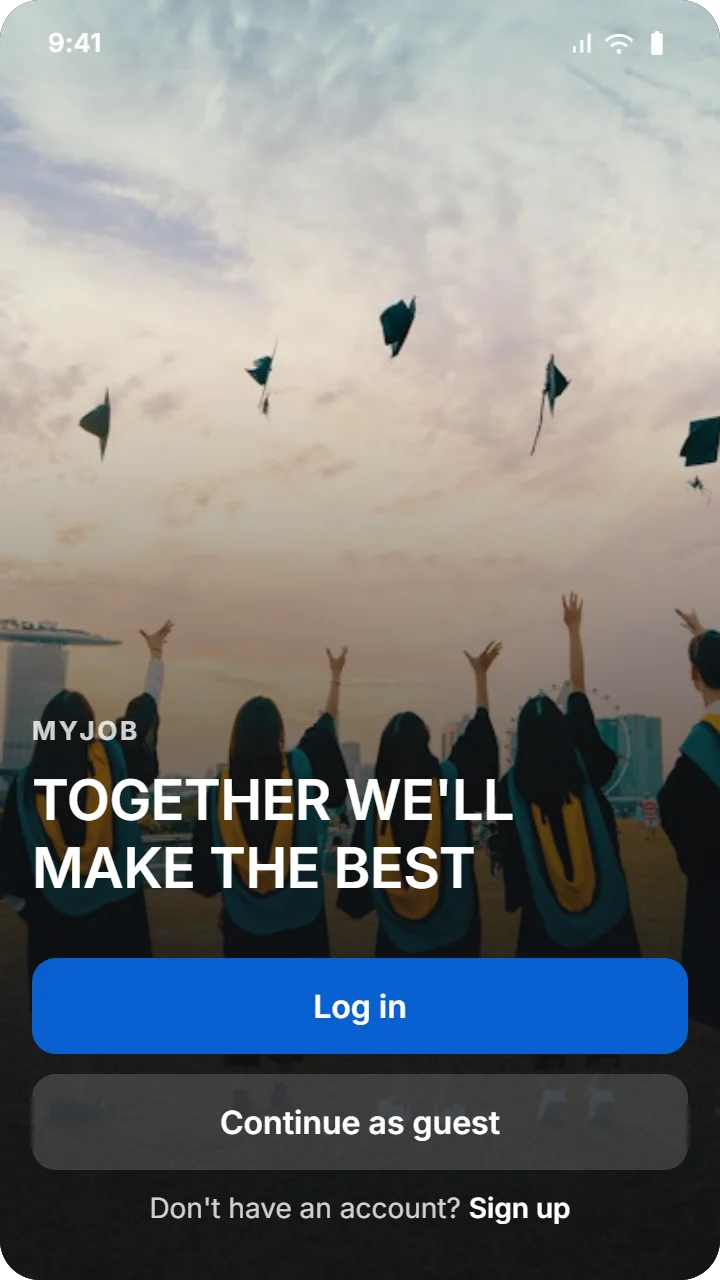
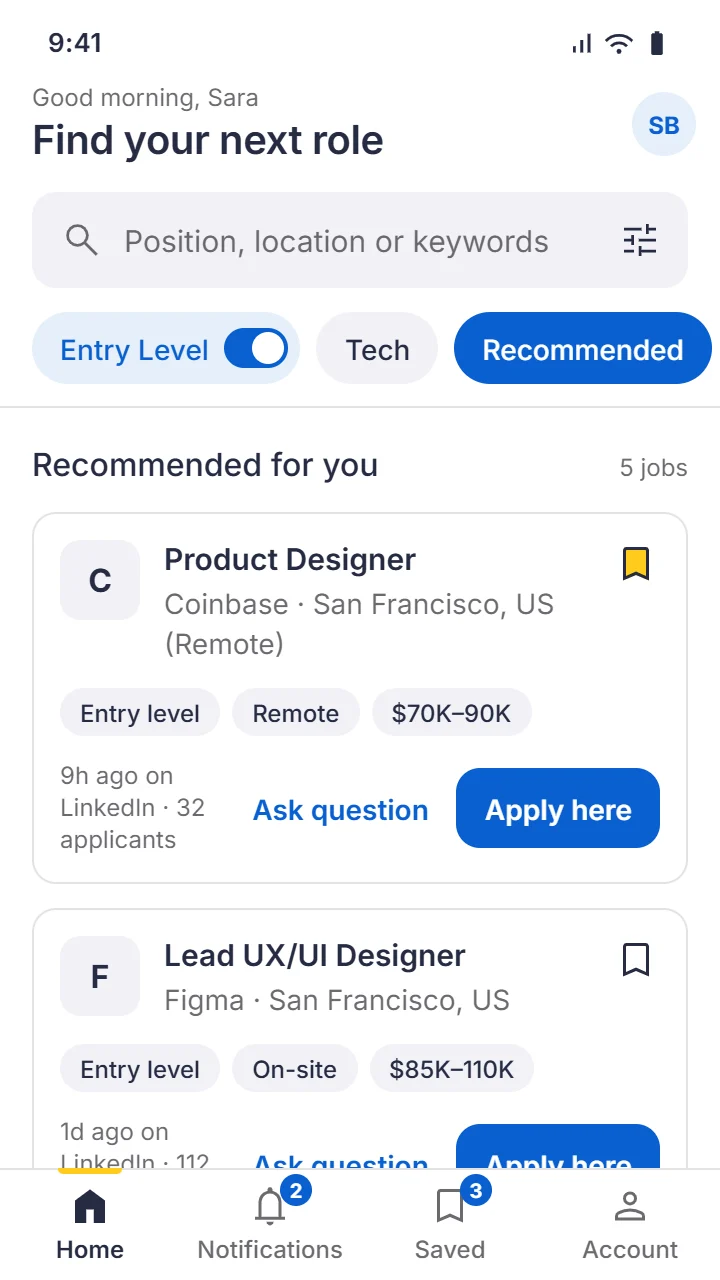
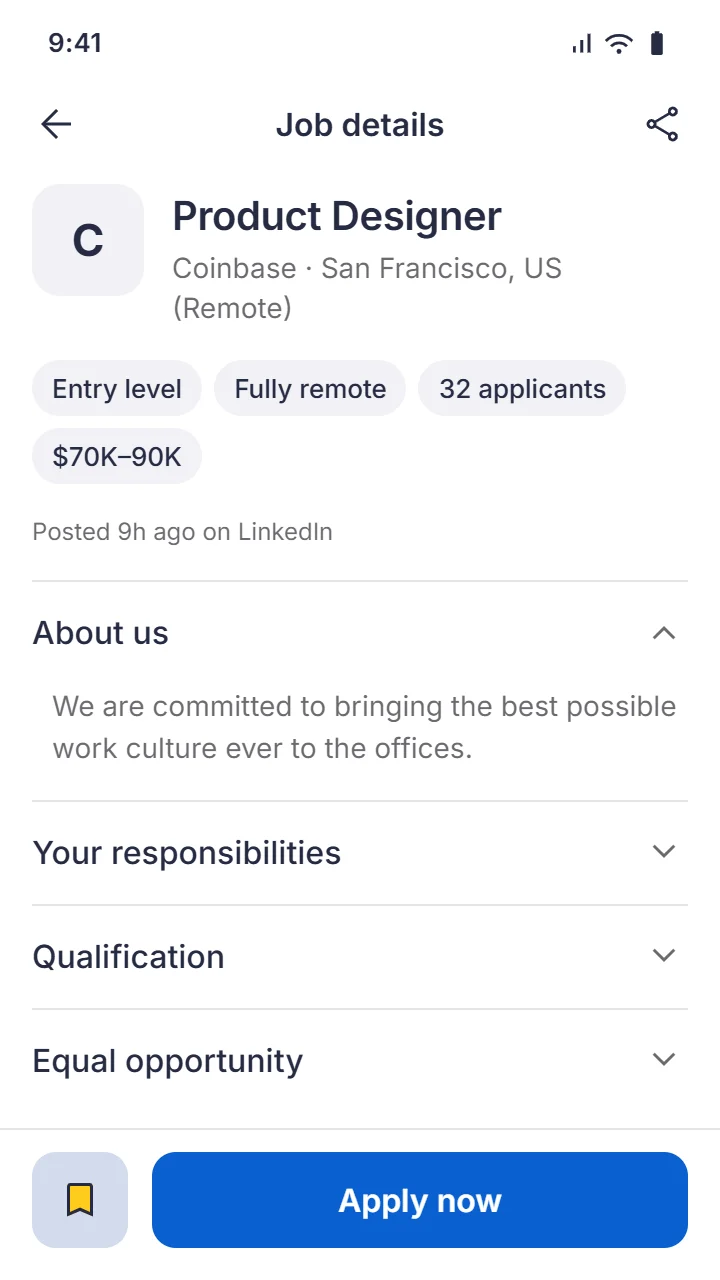
MyJob adds an Entry Level mode that filters the feed to beginner-friendly roles, so graduates can quickly find jobs that match their experience.
To understand my users, I interviewed several recent graduates and built a persona from what they told me. Meet Sara.

Sara
“It's overwhelming when most of the job postings are for experienced professionals.”
- Age
- 20
- Education
- Associate degree
- Hometown
- Dallas
- Family
- Lives with her parents and siblings
- Occupation
- Babysitter
Goals
- Find better-paying entry-level jobs.
- Help her family pay off her student loan.
- Gain experience in her field of study.
Frustrations
- Most opportunities are aimed at experienced professionals.
- Entry-level positions fill up fast, so she needs to check them often and on the go, but no app makes that easy.
Sara recently graduated from college and is babysitting to pay off her loan. She has tried several job-search platforms, but finds them overwhelming because most postings are for experienced professionals. With a busy schedule, she also needs to check new postings on the go.
Crazy Eights
I used the Crazy Eights exercise to generate ideas for the wireframes. I pushed myself to be as creative as possible and kept every idea that came to mind. Here are some of them:
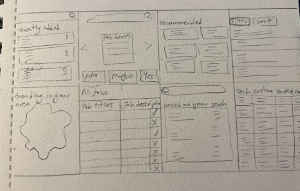
How might we
In the “How might we” exercise, I wrote down every possible improvement I could think of. At this stage every idea was welcome, however unusual or ordinary. I looked for solutions to questions like:
- How might we make the job search smoother?
- How might we make the job search faster?
- How might we make the job search more reliable?
- How might we give users peace of mind?
After ideation, I sketched paper wireframes with a strong focus on the search flow. Since Entry Level mode was a core feature, most of my drafts include an Entry Level switch.
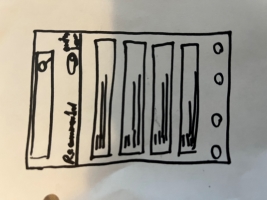
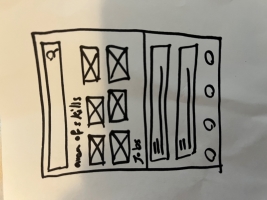
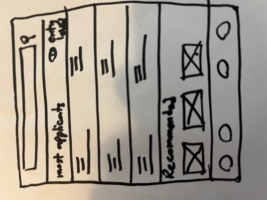
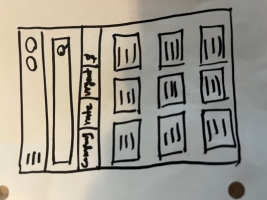
Building on the paper wireframes, I designed the digital wireframes in Figma. I kept the Entry Level mode easy to reach, since it addressed one of the main pain points, and added a navigation bar to make browsing smoother.
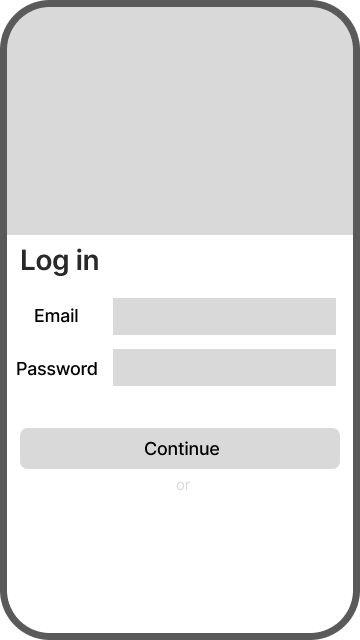
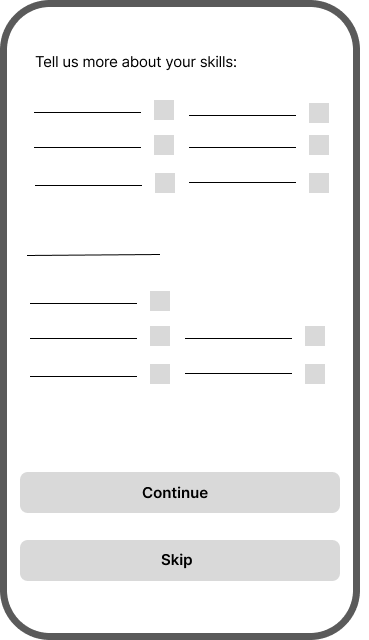
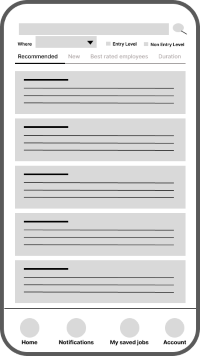
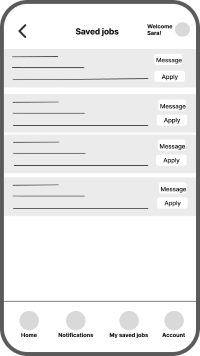
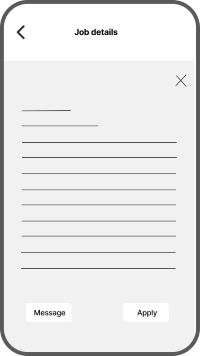
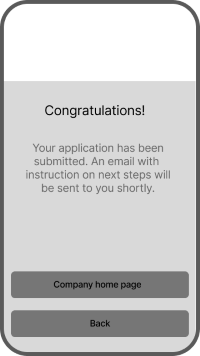
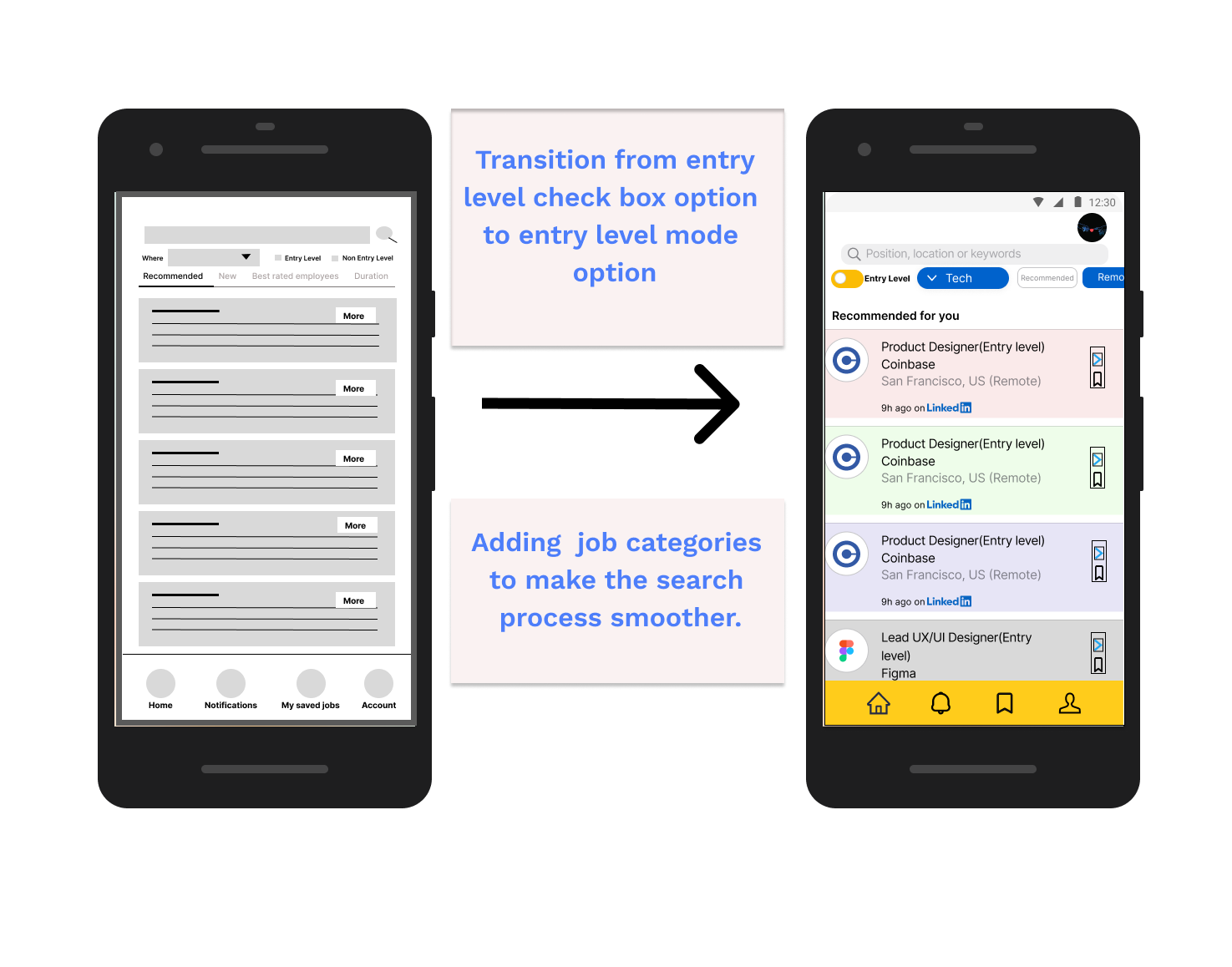
I turned the low-fidelity wireframes into a prototype and used it in a usability study. The findings gave me insights I used to adjust the design to better fit users' needs.
Entry Level mode
Finding: Most users found the Entry Level options confusing and weren't sure which one to choose.
Insight: Replace the checkboxes with a single switch so users can turn Entry Level mode on and off.
Job categories
Finding: Most users wanted to browse jobs by category.
Insight: Add job categories so users can filter by the fields they are interested in.
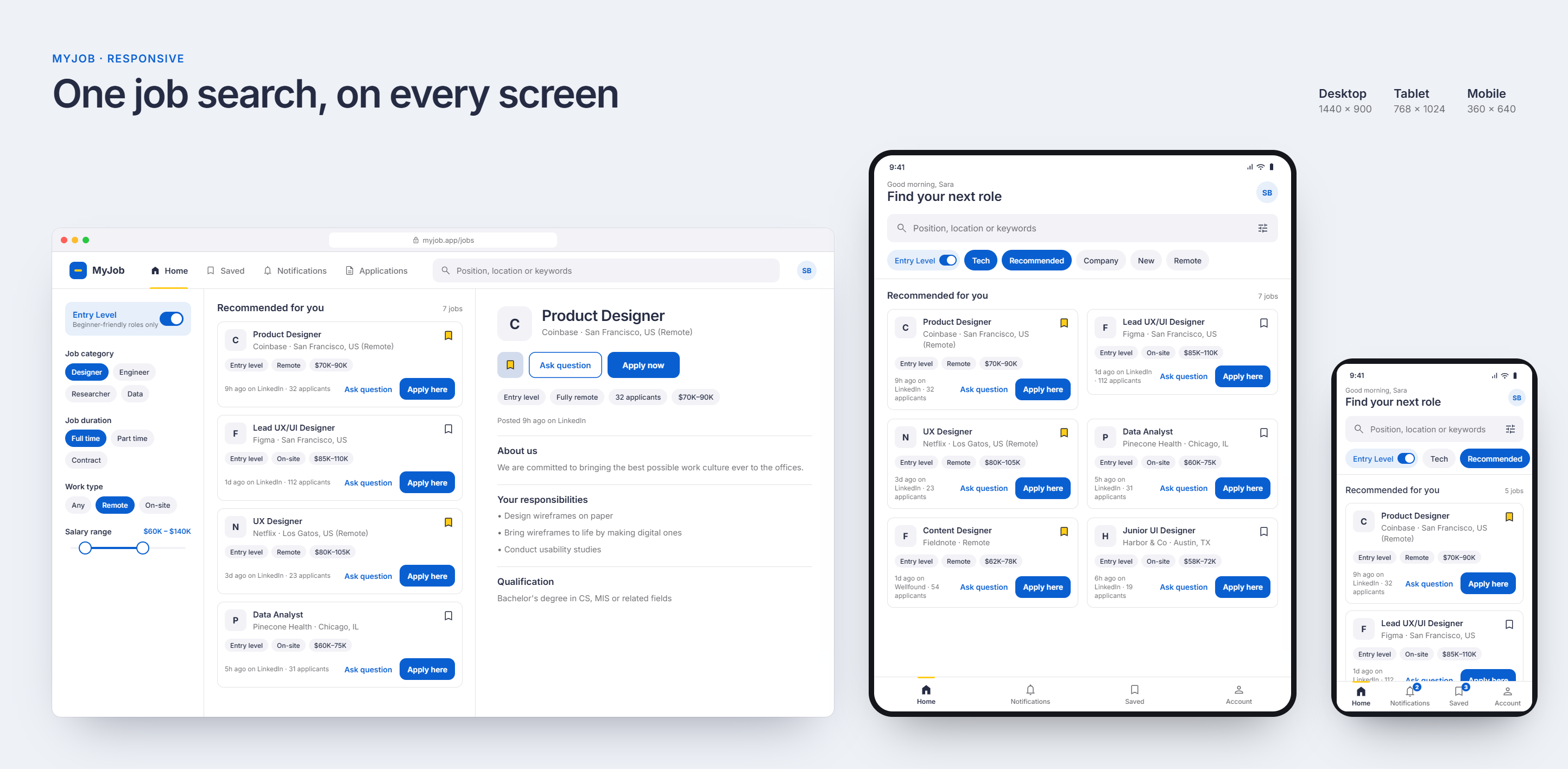
To make the product accessible to everyone, I also designed a responsive website for mobile, tablet and desktop. This way, people can use MyJob even if they haven't installed the app.
In the app, body text is never smaller than 14 px, tap targets are at least 44 px, the main blue meets WCAG AA contrast with white text, and every animation turns into a simple fade when “Reduce motion” is on.
After the first version shipped as a hi-fi prototype, I went back to it with fresh eyes. The flow worked, but the visuals were busy and inconsistent: several blues, pastel cards in pink, green and lavender, a heavy yellow bottom bar, and very small text. I kept the flow, the content and the Entry Level mode, and changed how the screens look and behave.
One blue instead of several
Before: Buttons, links and icons used different blues, including a light #23A6F0 that white text can't sit on.
After: One deeper blue, #0A5FD0, for every action. White text on it passes WCAG AA, and the screens read as one product.
Yellow as an accent, not a bar
Before: A full yellow tab bar pulled attention away from the jobs.
After: A white tab bar. Yellow only marks the active tab and saved jobs, so it always means “this is yours.”
One neutral job card
Before: Cards were tinted pink, green or lavender, but the colors didn't mean anything.
After: Every card is the same clean surface. Level, work type and salary appear as small tags, so the eye goes to the job title.
Text people can read
Before: Much of the body text was 10–12 px.
After: One Inter type scale with body text at 14 px or larger, and a clear order of title, company and details.
Clearer inputs and actions
Before: Underline-only fields lost their labels once filled, and screens had several buttons competing for attention.
After: Floating-label fields with clear focus and error states, and one main action per screen. Job detail keeps “Apply now” in a bar that stays on screen.
Missing screens added
Before: There was no way to filter results, review an application or follow its progress.
After: New onboarding, search results with filters, an application review step, an applications tracker, empty states, settings and dark mode.
I also added purposeful motion, such as the job card expanding into its detail page and the bookmark filling with a small bounce, so each change on screen is easy to follow. With “Reduce motion” on, every animation becomes a simple fade.
For the refreshed design I built a small design system so every screen follows the same rules: one typeface, a short list of color tokens with light and dark values, one spacing scale, and one button style for each level of action.
Color
Blue is the action color because it reads as trustworthy and calm, which matters when people are making career decisions. I chose a deeper blue, #0A5FD0, over the lighter #23A6F0 because white text on it passes WCAG AA contrast. The yellow from the original bottom bar became a small accent that only marks the active tab and saved jobs, so it always means “this is yours.” Every token also has a dark-mode value.
- Primary#0A5FD0Buttons, links, selected chips
- Accent#FFCC1BActive tab, saved bookmark
- Tonal#D3DCEDSecondary buttons
- Surface#F2F2F7Inputs, chips, logo tiles
- Text#252B42Headings and body
- Success#2DC071Applied confirmation
- Dark background#0F1115Dark mode page
Text on white reaches about 14.6:1 contrast, white on the primary blue about 6:1, and text on the tonal blue about 10.6:1.
Typography
The app uses Inter throughout. It stays clear at small sizes, its numbers are easy to scan in salaries and dates, and it keeps the interface neutral. Hierarchy comes from size and weight instead of extra fonts or colors, and body text never goes below 14 px.
- Together we’ll make the best
- Product Designer
- Recommended for you
- Coinbase · San Francisco, US (Remote)
- 9h ago on LinkedIn · 32 applicants
Spacing, components and motion
- Frame
- 360 × 640, 16 px margins
- Spacing scale
- 4 · 8 · 12 · 16 · 24 · 32
- Corners
- 12 px cards, inputs and buttons
- Tap targets
- 44 px minimum
- Icons
- One outline set, 24 px
- Motion
- 120–500 ms, fade when “Reduce motion” is on
After the low-fidelity prototype and usability testing, these are the final screens, grouped by flow. Tap any screen to view it full size.
Welcome and sign-in
Set up and browse
Apply
Notifications, saved and account
Here is a look at the hi-fi prototype, based on the latest insights from usability testing. Next, I'll run further usability tests to measure how efficient the current prototype is and to find any new pain points.
The most valuable lesson from this project was that even a small design change can make a big difference to the user experience.
Try the live prototype
works on phone and desktop