
Busy people with different interests spend hours looking for DIY projects worth their time. Good content is scattered across many sites, and it is hard to tell which projects are high quality.
UX Case Study · Responsive Website
DIYer
A website that helps busy people find, view and save DIY projects without spending hours searching.
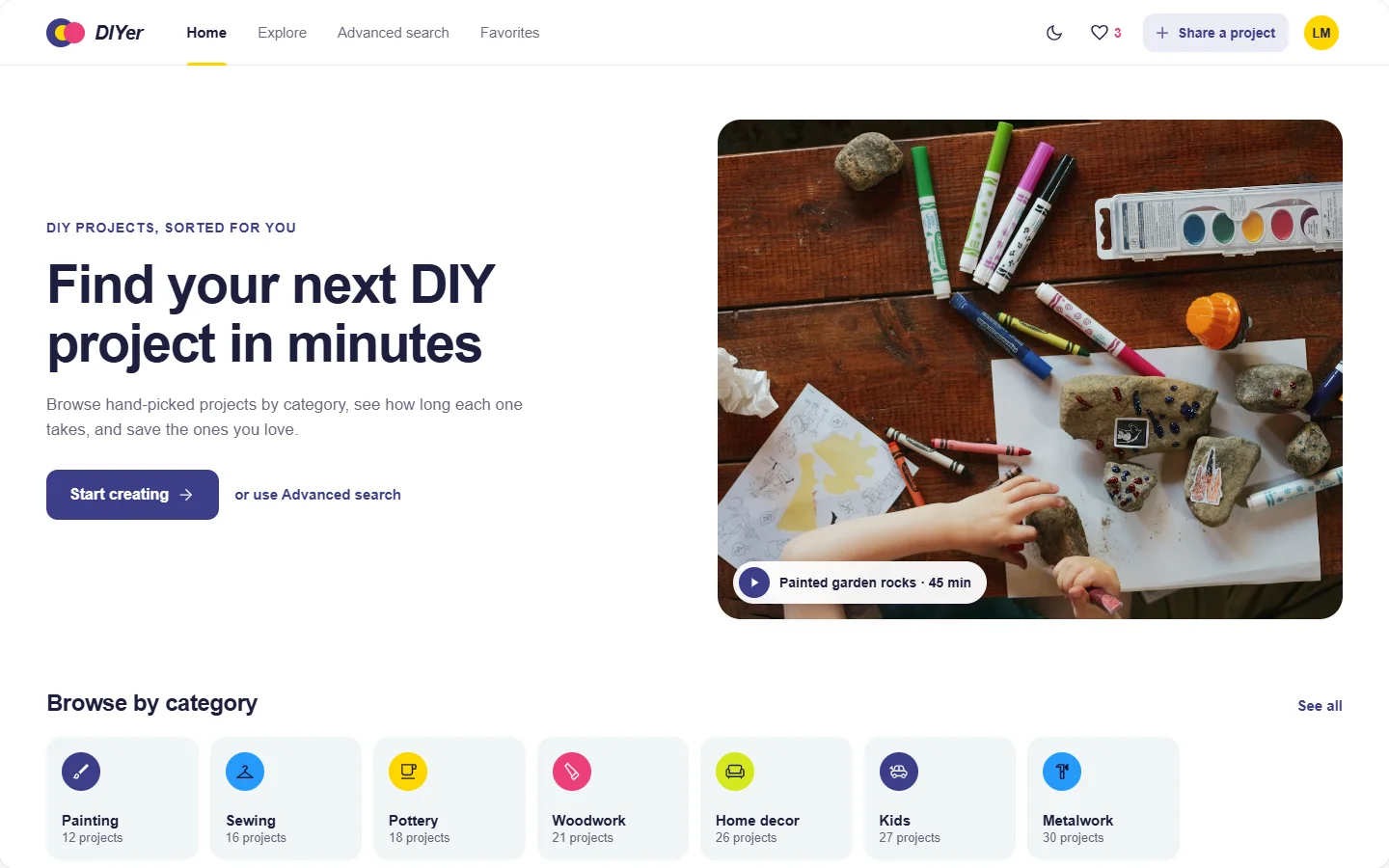
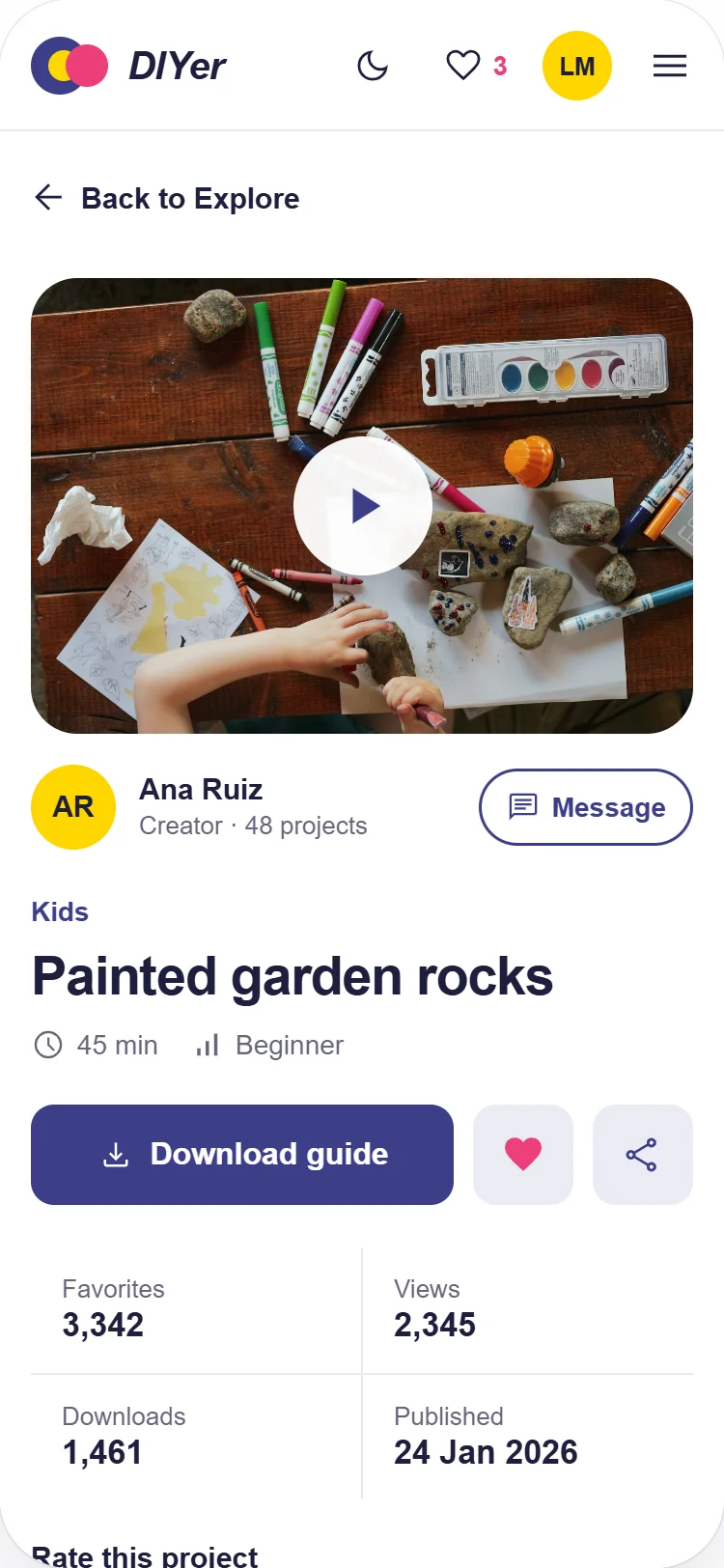
DIYer brings DIY projects together in one place, sorted by category, so people can quickly find, preview and save the ones that match their interests.
To understand my users and their main pain points, I ran research and interviews, then built a persona from what I learned. Meet Laura.

Laura
“I get really disappointed when I spend hours looking for the right DIY project and come away with nothing.”
- Age
- 32
- Education
- Bachelor’s degree
- Hometown
- Chicago
- Family
- Married, one child
- Occupation
- Artist and designer
Goals
- Build her own platform to teach DIY projects to others.
- Collect lots of DIY projects and choose the best ones.
Frustrations
- It is hard to find high-quality content.
- It is hard to find projects that match her interests.
Laura is an artist with a busy schedule as a mom and designer. She wants to build her own media platform to share DIY projects with everyone. Before that, she needs to collect enough projects, so every weekend she browses and saves the best ones she can find.
I mapped Laura’s journey to see where she struggles to find a project she wants. The map shows two clear needs: one trusted place to look, and a way to filter projects to what fits her.
-
Step 1
Browse categories of DIY projects
- Scroll through websites.
- Find one with good DIY projects.
EagerInquisitive
One trusted website to go to
-
Step 2
Choose a DIY project
- Scroll through that website.
- Find DIY projects.
- View them one by one.
ExcitedOptimistic
Filters to narrow the list
-
Step 3
Decide if she likes it
- Decide whether the project is interesting.
EncouragedDisappointed
Time and difficulty shown up front
-
Step 4
Save it
- Check its quality.
- Save it to her device.
DisappointedDismayedTrusting
A favorites list on the site
Based on my research into users, their pain points and the parts the website needed, I designed the digital wireframes in Adobe XD.
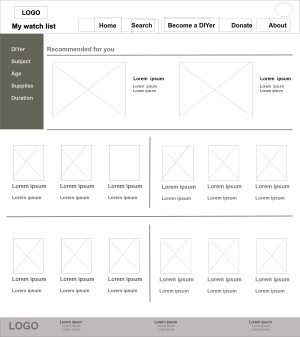
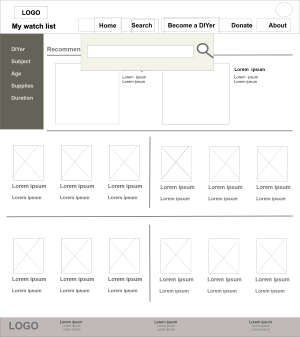
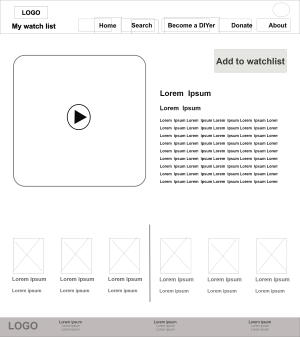
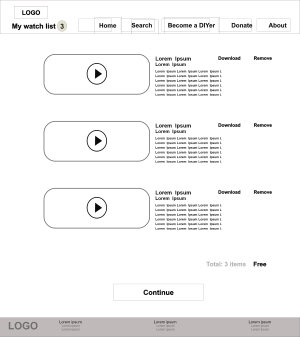
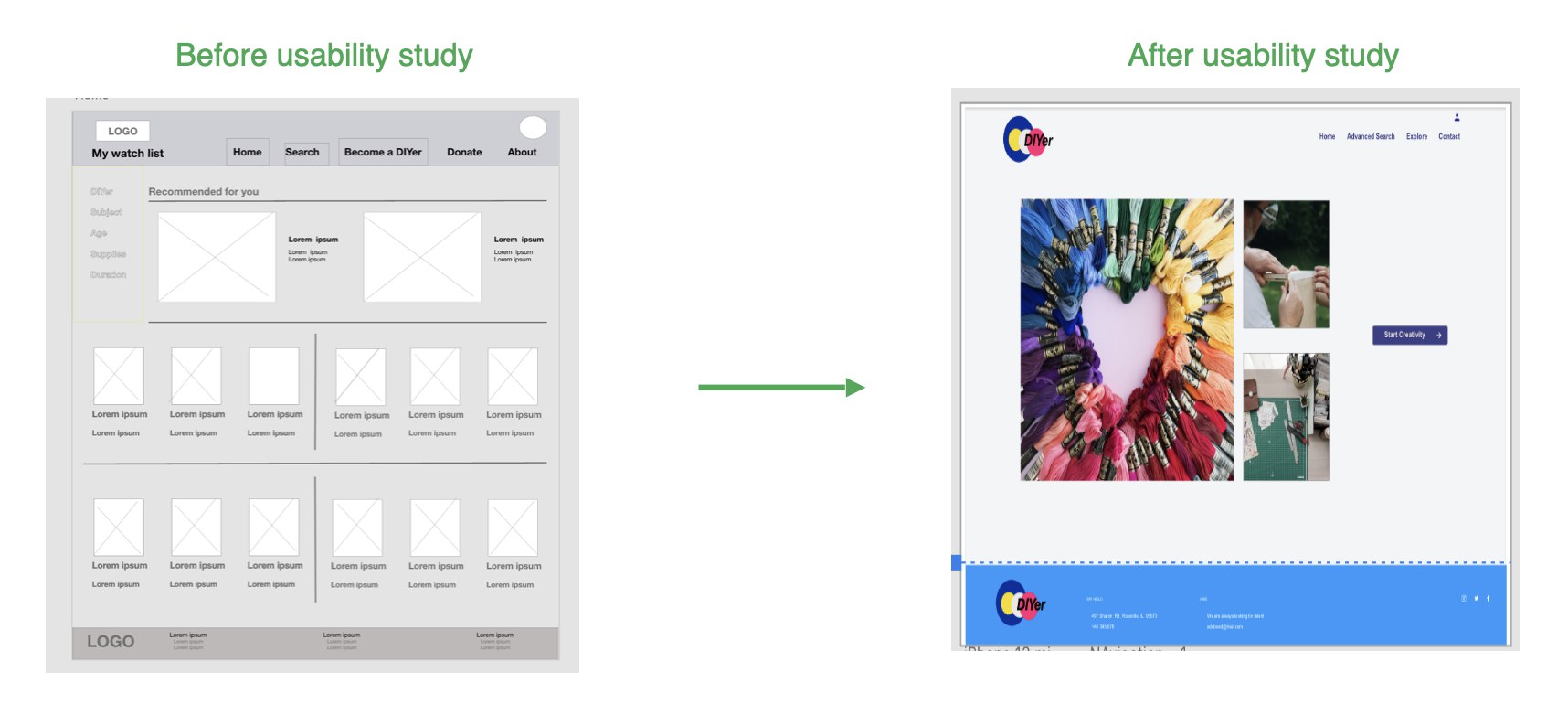
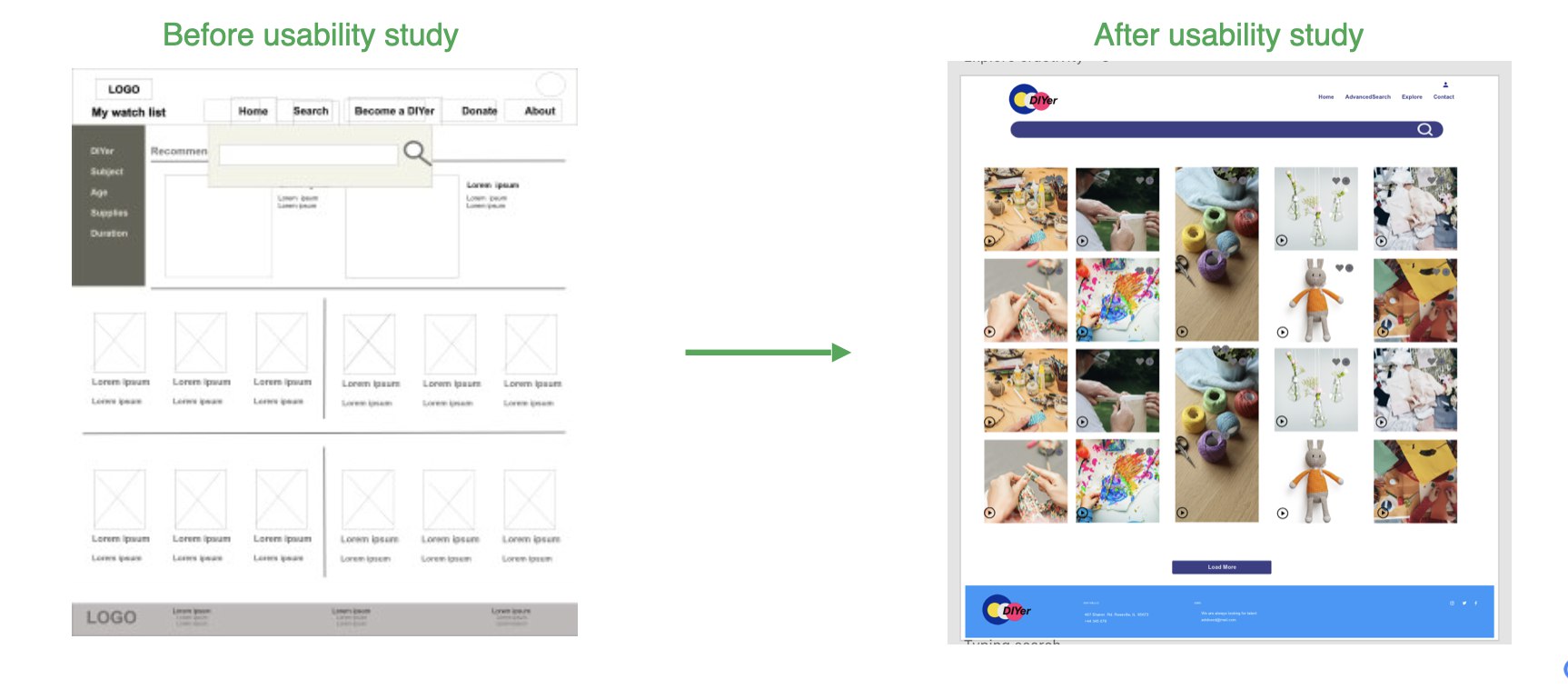
I ran two rounds of usability tests to find out what needed to change. Each finding pointed to a specific improvement.
Round one
Finding: Users wanted a button on each DIY project to add it to a favorites list.
Finding: Users wanted a way to switch between options in each search area.
Round two
Finding: Some users found the homepage too busy.
Change: I designed a cleaner, more focused homepage.
To design inclusively, every screen has a desktop and a phone layout. On phone, the navigation collapses into a menu, filters open on demand, and cards switch to two columns.
Body text is at least 15 px, tap targets are at least 44 px, white text on the navy action color passes WCAG AA, the site has a dark mode, and every animation becomes a short fade when “Reduce motion” is on.
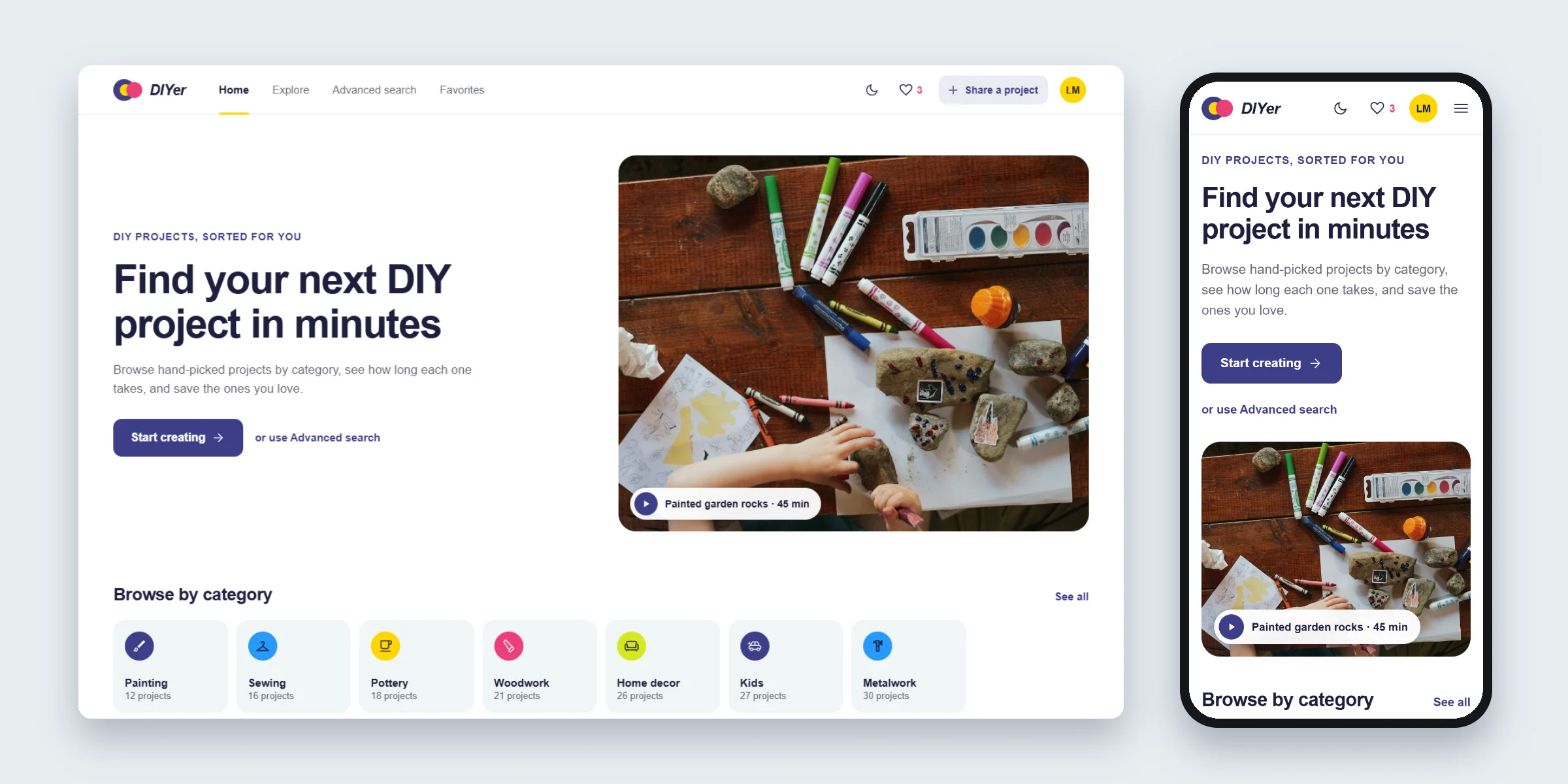
When I returned to the Adobe XD mockups, the flow and the usability fixes still held up, but the screens felt crowded and the spacing was uneven. I kept the brand colors, the flow and every fix from testing, and changed how the pages look and behave.
A calmer homepage
Before: A collage of three photos with a small button off to the side.
After: One headline, one photo and one main action, “Start creating,” followed by categories and popular projects.
One navy for actions
Before: Buttons used several shades, including a light lavender that white text can’t sit on.
After: The logo’s navy, #3C3E89, marks every main action. Sky blue stays in the footer, and yellow, pink and lime are small accents.
Photo-first cards with a heart
Before: Dense image tiles with tiny icons.
After: Larger photos with the title, time and difficulty underneath, and a favorite heart on every card.
Switchable search options
Before: A single search bar.
After: Category chips, on/off options for video, time and difficulty, and a sort control. Results update as you change them.
One main action on the detail page
Before: Four stacked buttons of equal weight: Download, Share, Message and Rate.
After: “Download guide” is the main button, with the heart and share beside it. Messaging moved next to the creator, and rating became tappable stars.
Missing screens added
Before: No account area and no way for users to share their own projects.
After: Account, Preferences, Settings and “Share a project,” plus empty, loading and error states and a dark mode.
For the refreshed design I wrote down a small set of rules so every page follows the same system: the original brand colors with light and dark values, one typeface, one spacing scale, and one button style for each level of action.
Color
Every color comes from the original logo and mockups. Navy is the action color because it is the logo’s anchor and reads as calm and trustworthy. The bright logo colors are kept for small, meaningful moments: pink for favorites, yellow for the active page and ratings, lime for the active tab in Favorites.
- Navy#3C3E89Buttons, links, selected chips
- Sky#269AFBFooter, category icons
- Pink#EC3F7AFavorites, error icon
- Yellow#FED500Active nav, ratings, avatar
- Lime#D5E91EActive tab, success
- Surface#F1F6F7Tiles, inputs, panels
- Text#1E1F3DHeadings and body
- Dark background#12131FDark mode page
White on navy reaches about 9.6:1 contrast, text on white about 16:1, and the navy footer text on sky blue about 6:1.
Typography
The site keeps the clean sans-serif from the mockups, Helvetica Neue with Arial as a fallback. Hierarchy comes from size and weight rather than extra fonts, and the logo keeps its bold italic.
- Find your next DIY project
- Pinch-pot clay mugs
- Popular this week
- Painted garden rocks
- Kids · 45 min · Beginner
- Creator · 48 projects
Spacing, components and motion
- Page margins
- 48 px desktop, 24 px tablet, 16 px phone
- Spacing scale
- 4 · 8 · 12 · 16 · 24 · 32 · 48 · 72
- Corners
- 12 px buttons and inputs, 16 px cards, 24 px hero
- Tap targets
- 44 px minimum
- Icons
- One outline set, 24 px
- Motion
- Card lift, heart pop, fade-up, 200–550 ms; fade only with “Reduce motion”
These are the final screens, grouped by flow. Tap any screen to view it full size.
Desktop · Browse, decide and save
Desktop · Account and sharing
Desktop · Empty, loading and error states
Phone
The live prototype is built on the latest insights from usability testing. You can browse categories, filter search results, open a project, save it to Favorites, and share a project of your own. It works on desktop and phone, in light and dark mode.
I plan to keep testing, since each round brings new insights. The biggest lesson so far: removing clutter did more for the experience than any feature I added.
Try the live prototype
works on phone and desktop